

TheBankTodayTheBankTodayTheBankToday
Notification Show More
Font ResizerAa
  • Home
  • Banking
  • SBI
  • ATM Card
  • NEFT/UPI
  • Central Bank
  • Important
Reading: Make your Windows Computer faster in minutes with these 7 tips
Share
Font ResizerAa
TheBankTodayTheBankToday
  • Home
  • Banking
  • SBI
  • ATM Card
  • NEFT/UPI
  • Central Bank
  • Important
Search
  • Home
  • Banking
  • SBI
  • ATM Card
  • NEFT/UPI
  • Central Bank
  • Important
Have an existing account? Sign In
Follow US

Home » Important

windows pc
Important

Make your Windows Computer faster in minutes with these 7 tips

Takendra Verma
Last updated: 09/03/2026 2:57 PM
Takendra Verma
Published: 09/03/2026
Share
SHARE

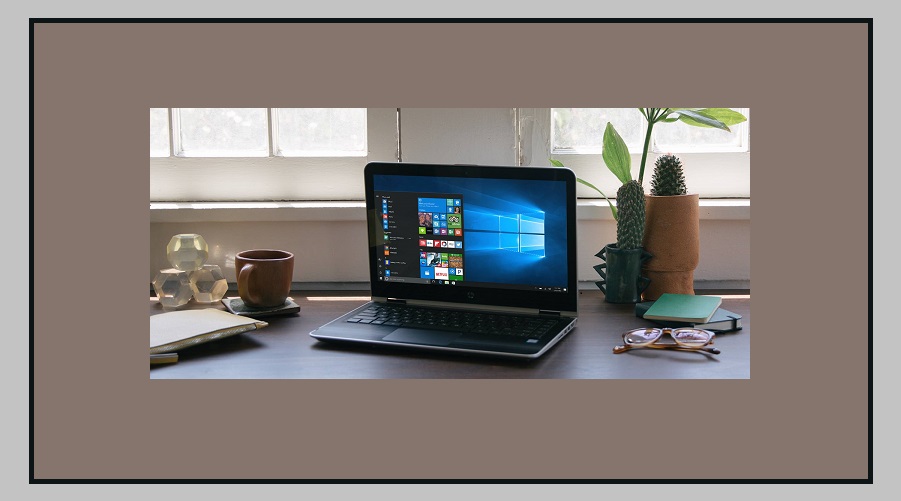
Over time, many Windows computers start running slower.

Contents
Keep Windows and Drivers UpdatedScan Your PC for MalwareFree Up Storage SpaceRemove Apps You No Longer UseDisable Startup ProgramsLimit Background Apps and Visual Effects

Apps take longer to open, the system may hang, and everyday tasks become frustrating.

There can be several reasons for this problem.

Too many apps running in the background, full storage, or outdated system software can all slow down your computer.

According to Microsoft, there are a few simple steps you can follow to improve your PC’s performance.

These methods can help make your computer faster and smoother to use.

Keep Windows and Drivers Updated

One of the easiest ways to improve your computer’s speed is to keep Microsoft Windows updated.

New updates usually include security patches, bug fixes, and driver improvements that help the system run better.

If your PC hasn’t been updated for a long time, installing the latest update may solve many performance issues automatically.

Regular updates also make your system more secure and stable.

Scan Your PC for Malware

Sometimes a slow computer is caused by viruses or malware.

These harmful programs run in the background and consume system resources, which reduces performance.

You can use built-in security tools like Microsoft Defender to scan your computer for threats.

Running a malware scan regularly helps detect and remove harmful files quickly.

Free Up Storage Space

If your computer’s storage is almost full, it can slow down the entire system.

Deleting unnecessary files, old downloads, and temporary data can free up space and improve speed.

Windows also provides helpful tools such as Storage Sense and Disk Cleanup, which automatically remove temporary and unused files.

Using these tools regularly can keep your system running smoothly.

Remove Apps You No Longer Use

Many users install apps that they stop using later.

These apps take up storage space and sometimes run in the background.

Uninstalling unused programs can help reduce system load and improve overall performance.

It also frees up valuable storage on your PC.

Disable Startup Programs

Some apps start automatically when you turn on your computer.

This can slow down the startup process and increase RAM usage.

You can manage these apps using Task Manager.

From there, you can disable unnecessary startup programs so your computer boots faster.

Limit Background Apps and Visual Effects

Many apps continue running in the background even after you close them.

This uses system resources and can reduce your PC’s speed.

Limiting background activity for unnecessary apps can help improve performance.

Windows also includes various animations and visual effects that make the interface look attractive but use extra system power.

Reducing these effects can make your computer feel faster.

By following these simple steps, you can significantly improve the speed and performance of your Windows PC without needing to upgrade hardware.


You Might Also Like

Double Transport allowance for Disabled Central Employees
IRCTC launches Special Religious Tour on Bharat Gaurav Train
Start Your Own Wooden Furniture Business With Extra Income
Shree Ram Twistex launches Mainboard IPO Next Week
LPG ATM launched in gurugram
Share This Article
Facebook Email Print
Leave a Comment

Leave a Reply Cancel reply

Your email address will not be published. Required fields are marked *

Difference Between NEFT and RTGS

Get Banking Updates

Important banking and money updates, delivered without the clutter.
Thank you! Please check your inbox to confirm your subscription.
Popular Updates
SBI Asha Scholarship
SBI Asha Scholarship 2023: विद्यार्थियों को मिल रही 5 लाख की स्कॉलरशिप
31/07/2023
fd
RBI Changes FD Interest Rate Rules From October 1
22/09/2026
How to register YONO SBI
How to register YONO SBI in Just 5 minutes
11/05/2023
check balance from SBI ATM
How to check Balance from SBI ATM?
30/07/2023
How to check Balance in SBI
How to check Balance in SBI in 2023?
18/02/2023

Tags

  • Central Bank Of India
  • Pan Card
  • register mobile number
  • pan card new rule
  • Banking Service
  • HDFC
  • SBI Personal Loan
  • Net Banking
  • Activate Net Banking
  • What is Bank?

TheBankToday

TheBankToday publishes practical banking, personal-finance and financial-news explainers to help readers understand important updates and services.
Quick Links
  • About
  • Contact Us
  • Disclaimer
  • Join Us
  • T&C
  • Privacy Policy
  • Customize Interests
Important Links
  • Advertise With Us
  • Advertising Policy
  • Cookie Policy
  • Corrections Policy
  • Editorial Policy
  • Fact-Checking Policy
  • Grievance Redressal

Subscribe Us

Subscribe to our newsletter to get our newest articles instantly!

Thank you! Please check your inbox to confirm your subscription.
© 2026 TheBankToday. All Rights Reserved.
Welcome Back!

Sign in to your account

Username or Email Address
Password

Lost your password?